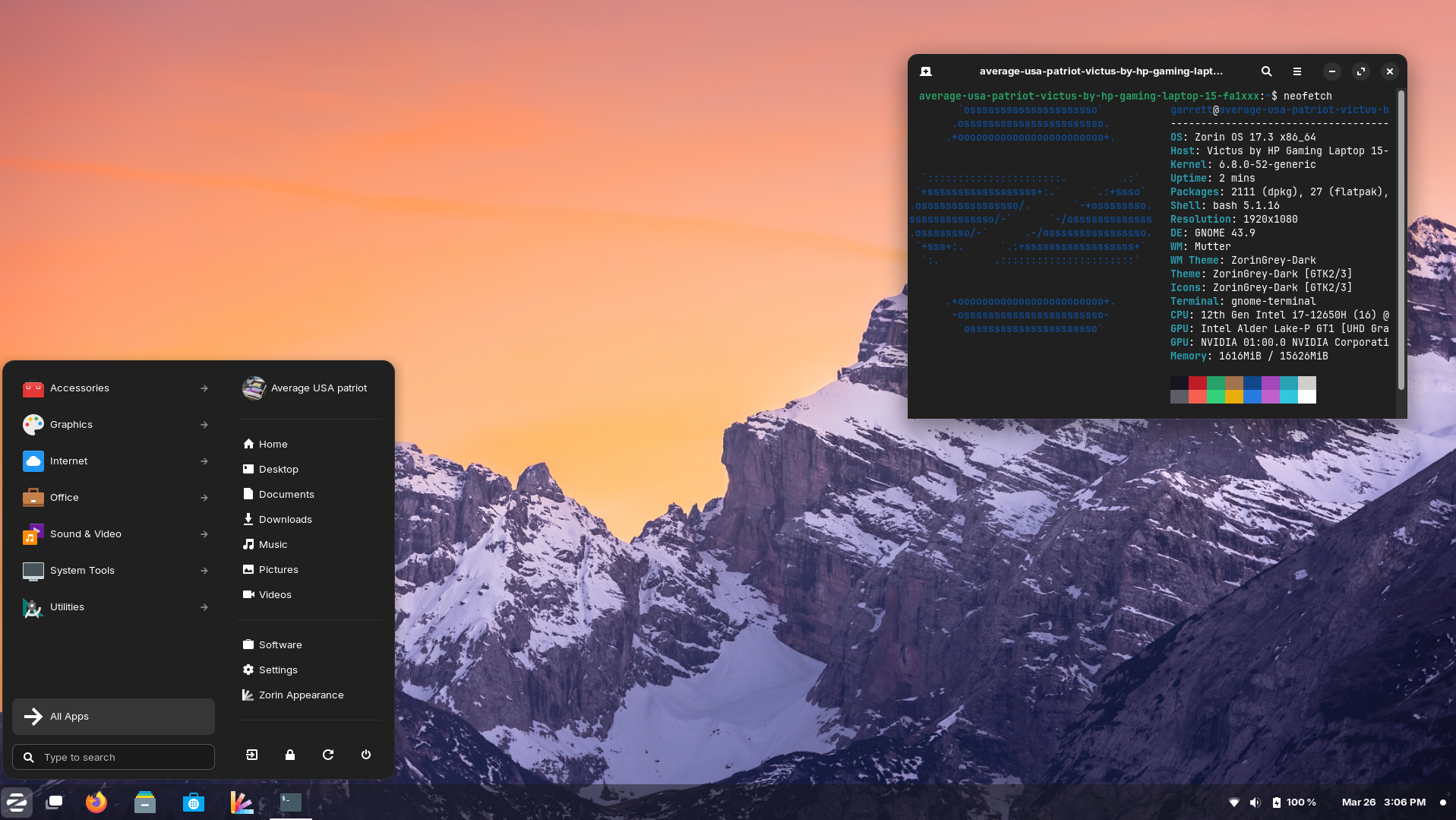
A Compelling Case for Moving from Windows 10 to Linux

https://www.linux.com/images/stories/66866/DE-2.png?utm_source=chatgpt.com
https://upload.wikimedia.org/wikipedia/commons/7/74/Zorin_OS_17.3_Desktop.png?utm_source=chatgpt.com
https://linuxmint-installation-guide.readthedocs.io/en/latest/_images/cinnamon.png?utm_source=chatgpt.com

With Windows 10 now officially unsupported, continuing to rely on it is no longer a neutral decision. It introduces growing security risks, compliance concerns, and operational friction.

Based on the work already completed, moving to Linux is not only viable, it is a measured, responsible, and future-proof decision.


1. Security Becomes a Business Risk, Not Just an IT Issue

Once Windows 10 stops receiving security updates, every unpatched vulnerability becomes permanent. Over time, that risk compounds.

Linux offers:

  • Continuous security updates
  • Strong permission separation by design
  • A significantly smaller malware attack surface
  • No dependency on third-party antivirus software

From a governance and risk perspective, running an unsupported operating system is increasingly difficult to justify. Linux restores a secure baseline.


2. No Forced Hardware Replacement

Modern Windows upgrades increasingly require:

  • TPM enforcement
  • Newer CPUs
  • Vendor-approved hardware

Linux runs efficiently on existing hardware, including systems Windows now considers obsolete. The work already done confirms that Wi-Fi, Bluetooth, graphics, and peripherals operate reliably without replacement.

The result:

  • Lower capital expenditure
  • Extended hardware lifespan
  • Reduced electronic waste

3. Predictability Instead of Forced Change

Windows updates frequently introduce:

  • Unrequested UI changes
  • Feature removals
  • Background services and advertising
  • Behaviour changes after updates

Linux updates are:

  • Transparent
  • Optional
  • Reversible
  • Administrator-controlled

Nothing installs unless it is explicitly approved. This removes a significant source of operational uncertainty.


4. A Familiar User Experience Without the Bloat

Modern Linux desktops provide:

  • A familiar Windows-like workflow
  • Fast and responsive performance
  • No ads, pop-ups, or telemetry

For users:

  • Browsers, email, Office-compatible tools, and PDF workflows work as expected
  • Bluetooth mice, keyboards, CAD devices, scanners, and printers function normally
  • No forced cloud accounts or subscription prompts

Training overhead is minimal, especially compared to adapting to newer Windows versions.


5. Licensing Costs Drop to Zero

Linux eliminates:

  • Operating system licensing fees
  • Subscription-based OS models
  • Artificial feature tiering

This is particularly valuable when:

  • Redeploying older machines
  • Building task-specific systems
  • Creating admin, kiosk, or utility workstations

The operating system becomes infrastructure, not a recurring cost.


6. Stability for Purpose-Built Workflows

Linux excels in clearly defined roles, including:

  • Administrative workstations
  • Production and CAD support systems
  • File management and automation
  • Remote access environments

Linux systems do not “drift” over time. A machine configured today will behave the same way months later, without surprise regressions.


7. A Strategic Reset, Not a Lateral Move

This is not about rejecting Windows. It is about acknowledging that:

  • Windows 10 is now a liability
  • Newer Windows versions impose constraints that do not align with operational needs
  • Linux provides control, longevity, and clarity

This represents a shift from a consumer-driven OS model to an engineered platform.


Bottom Line

Staying on Windows 10 is the risky option.

Moving to Linux is the controlled, secure, and forward-looking decision.

We retain our hardware, reduce costs, improve security, and regain control of our systems while delivering a stable and familiar experience for users.

Based on the work already completed, Linux is ready.

Thailand Trip 2025 – Trip Summary

Our 2025 Thailand trip has been one of the most relaxed and enjoyable visits we’ve had in years. After arriving in Bangkok on 24 October, we first spent about a week in Phetchabun and Sukhothai, easing into the trip with cooler mountain air, quiet roads, and some of Thailand’s most beautiful historic ruins. Sukhothai in particular was a highlight, with its peaceful ancient temples, giant trees, and wide open spaces that are perfect for slow wandering and photography.

From there we made our way into the slower, rural rhythm of Isaan. Bew kindly lent us her Mitsubishi, and we drove from Udon Thani to Ban Nong Pai in Kalasin, settling into familiar surroundings and family life.

This visit lined up perfectly with the rice-harvesting season. Across several days we watched local farmers cut, spread, and dry their rice along the rural village roads. What always stands out is the effortless respect from the community, cars slowing down, weaving around the drying rice, and treating the whole process as a normal and important part of village life.

We spent time exploring the area, visiting local temples, and calling in at a small mushroom farm, where we learned how growers can harvest multiple yields from each substrate bag and sell their produce for up to 100 baht per kilo.

Most importantly, this trip has been about family. We spent time with May and her son Folk, caught up with relatives in Udon and Kalasin, and enjoyed evenings filled with food, conversation, and the warmth that only comes from being back in Isaan. We also had the chance to reconnect with Kari from Finland and share a few laughs over the quirks of language and culture.

It has been a simple, grounded, and meaningful trip. As it comes to an end, we’re taking home a renewed appreciation for the slower pace of rural Thailand, the generosity of family, and the beauty of the everyday moments that make this part of the world feel like home.

Until next time.

Fixing Windows 11 Update Failure: KB5062553 on Framework 16

After a clean reinstall of Windows 11 24H2 on my Framework 16, I ran into repeated failures trying to install the July 2025 Cumulative Update (KB5062553).

The Early Symptoms

  • Windows Update failed with generic errors
  • Manual install of KB5062553 from the Microsoft Update Catalog threw error 0x800f0838
    (Missing prerequisite update)
  • Servicing Stack Update (KB5043080) also refused to install
    (No error detail, just a failed status)

At this point, even after a clean OS install, nothing worked.

The Diagnosis

Running systeminfo showed I was on:

Windows 11 Pro, Build 26100.1

Turns out this was an OEM preload or early ISO version of 24H2. It did not meet the minimum build required for KB5062553.

The Fix

I upgraded using the official ISO from Microsoft’s Windows 11 Download Page:

  • Version: Windows 11 24H2
  • Build: 26100.1742, then 26100.4652 after updates

Once I was on 26100.1742 or later, both the Servicing Stack (KB5043080) and the Cumulative Update (KB5062553) installed without issue.

Final Status

I’m now running:

Windows 11 Pro 24H2
Build 26100.4652
Experience Pack 1000.26100.128.0

Everything updated cleanly and performance is rock solid.
If you’re seeing similar failures, check your build number first using:

Cmd

systeminfo | findstr /B /C:"OS Version"

Unwind at Mekong Riverview Hotel: A Memorable Luang Prabang Escape

If your diet revolves around KFC or Burger King, whether at home or abroad, then Luang Prabang might not be the ideal destination for you. You won’t find water parks or jet skis here either. However, for those seeking to escape fast food and a fast-paced lifestyle, the Mekong Riverview Hotel is the perfect retreat. Situated at the confluence of the Nam Khan and Mekong rivers, within the UNESCO World Heritage site of Luang Prabang, this hotel offers an ideal getaway.

During our four-night stay, the Mekong Riverview Hotel exceeded all of our expectations, surpassing even the glowing online reviews and YouTube videos. The décor of our room harmonized beautifully with the historical charm of the surroundings. With a rain shower, spa bath, and a wrap-around balcony, we spent hours simply sitting and enjoying the uninterrupted solitude we sought.

Given its location, the hotel provides transportation to the busier part of Luang Prabang. For the more energetic, complimentary bicycles are available. Breakfast is included, and the restaurant is located across the street on the bank of the Nam Khan River. As the fog lifts from the hilltops across the Mekong, you can savor a delightful bowl of local rice soup.

As you may have gathered from this review, the Mekong Riverview Hotel has left a lasting impression on us, and we highly recommend you experience it for yourself.

Linux vs Mac vs Windows — Continued Adventures in Computing

After a month of hands-on exploration, the verdict is in. Each platform has its strengths, but the experience of working with Linux Mint on aging hardware has been nothing short of impressive. Our 2013 ASUS S550C came back to life, and even an old Mac Mini that Apple had long since declared obsolete is now running smoothly with a full Linux desktop environment. By Apple’s standards, it was ready for the trash heap — but Linux had other plans.

🐧 Linux Mint — Lightweight Powerhouse

Reviving our 2013 ASUS S550C with Linux Mint was a revelation. It now boots fast, runs cool, and handles daily tasks with ease. The real surprise? The Mint interface feels clean, snappy, and surprisingly familiar.

We installed:

  • Ulauncher (a Spotlight-like launcher)
  • eDEX-UI (retro-futuristic terminal)
  • 1Password (Deb install)
  • OneDrive CLI (for real-time sync)
  • ClamAV (basic malware scanner)
  • TimeShift (Mac-like backup snapshots)

And even managed to replicate the setup onto our older Mac Mini, creating a reliable air-gapped backup machine. Formatting issues with external drives? Solved. Clunky Wubuntu distractions? Deleted. Mint was the clear winner for simplicity and control.

🍏 macOS — Premium and Polished

macOS still wins on polish. Out of the box, everything just works — Time Machine, Quick Look, Preview, Messages, iCloud, AirDrop. It’s seamless, especially if you’re already in the Apple ecosystem.

But try installing Linux on a 2013 Mac and it suddenly feels like you’ve been given more life out of your gear. That’s powerful. We now have a dual-boot setup: macOS for creative work, Linux Mint for focused tasks.

🪟 Windows — Ubiquitous but Heavy

Windows 11 works well on modern machines (like our Framework laptop), but it’s heavy. Even with a clean install, you often spend time uninstalling bloatware (thanks, Dell). Tools like Revo Uninstaller and disabling background services are almost mandatory.

The recent OneDrive CLI setup on Linux reminded us how refreshing it is to have control. On Windows, services like OneDrive are seamless but often opaque and difficult to tweak.

Verdict

FeatureLinux MintmacOSWindows 11
Performance on Old Hardware⭐⭐⭐⭐⭐⭐
User Interface⭐⭐⭐⭐⭐⭐⭐⭐⭐
App Ecosystem⭐⭐⭐⭐⭐⭐⭐⭐⭐⭐
Control/Customisation⭐⭐⭐⭐⭐⭐⭐⭐
Backup Options⭐⭐⭐⭐⭐⭐⭐⭐⭐
Malware Resilience⭐⭐⭐⭐⭐⭐⭐

Linux Mint has won a place in our workflow. macOS remains the gold standard for user experience. Windows? Still everywhere, still a bit frustrating.

Coming Up

We’ll be exploring:

  • How to automate backups when a drive is plugged in (à la Time Machine)
  • Creating a custom FileMaker timesheet app
  • Designing a Thai-style home in FreeCAD

Why Linux Mint is Perfect for Vintage Machines

There’s a unique satisfaction in reviving older machines and making them useful again. Instead of sending them off to e-waste, I recently gave new life to two systems — an ASUS S550C and an older Mac Mini — using Linux Mint. Along the way, I also explored Wubuntu and set up a Parallels virtual machine on my M2 MacBook Air running macOS 26.

Why Linux Mint?

Linux Mint is a clean, efficient Linux distribution based on Ubuntu. It’s known for its ease of use, broad hardware compatibility, and stability. The Cinnamon desktop environment offers a traditional layout that’s intuitive for users coming from both Windows and macOS, without being resource-heavy.

For aging hardware or anyone looking for a friendly Linux experience, Mint hits the sweet spot.

The ASUS S550C Transformation

This laptop had been running a heavily tweaked build of Windows 11, bypassing hardware checks just to stay functional. It was sluggish and unreliable. I wiped the drive and installed Linux Mint Cinnamon, which immediately felt faster and more responsive.

I then:

  • Installed key apps: Chrome, 1Password, Master PDF Editor, eDEX-UI, and Ulauncher
  • Removed unneeded defaults like Firefox and Brave
  • Set up OneDrive CLI sync using a systemd service for background syncing
  • Installed Timeshift, a simple backup utility similar to Time Machine
  • Enabled Flatpak and Snap for broader software access

This machine, once a borderline write-off, is now perfectly usable again — and quite enjoyable to work on.

Cloning to the Mac Mini

After configuring the ASUS, I exported settings and installed software using Mint’s built-in Backup Tool, replicating the setup on an older Mac Mini, now named AirGap. This machine is now a fully isolated Linux box used for testing new tools, checking sync integrity, and simulating an offline environment.

The migration was seamless, and both machines now offer a consistent, fast Linux experience.

A Short Detour with Wubuntu

Before committing to Mint, I briefly tested Wubuntu — a Linux distro designed to mimic Windows 11, complete with a Start menu, taskbar, and UI that feels instantly familiar to Windows users.

Although visually polished, I had two key concerns:

  1. Wubuntu is not fully open source. Certain features and configuration tools are locked behind a paid Pro version.
  2. The Windows-like interface may raise copyright questions. Its visual similarity to Windows could create legal uncertainty around long-term use or distribution.

After an hour or two of testing, I removed Wubuntu. It didn’t offer anything I couldn’t achieve more cleanly with Linux Mint and some light theming.

Parallels VM on macOS 26

To round things out, I also set up Linux Mint Cinnamon as a virtual machine on my M2 MacBook Air, which is currently running macOS 26 Developer Beta 2.

Using Parallels Desktop, Mint installed quickly and runs beautifully. I use this VM for cross-platform testing, automation scripts, and exploring Linux tools in a controlled environment. Snapshots and seamless Mac integration make it a valuable part of my workflow.

What I Learned

  • Linux Mint performs well on both older hardware and modern virtual machines
  • Open source tools like Timeshift, Ulauncher, and the OneDrive CLI add real productivity
  • Linux Mint’s backup and migration tools are practical and effective
  • Wubuntu, while visually clever, does not align with open source values and comes with licensing questions
  • Parallels Desktop provides a robust environment for running Linux Mint inside macOS without dual-booting

Final Thoughts

Linux Mint has once again proven itself as a reliable, user-friendly Linux distribution. Whether used to breathe life into aging hardware or to run in a VM alongside macOS, it delivers a complete desktop experience with minimal setup.

In a world of constant upgrades and planned obsolescence, it’s refreshing to see a system that restores, reuses, and rewards. For anyone looking to explore Linux seriously or to make better use of an old laptop, Mint is a fantastic place to start.

macOS 26 is here.

macOS 26 “Tahoe” – A Clean Install and Smooth Return to Form

By John Wagenvoort & Kai (OpenAI Collaborative)

Posted June 2025

After some initial trouble with Dropbox and a few unpredictable behaviors in early testing, I decided to take my M2 MacBook Air back to first principles. The result? A clean, responsive setup running the developer beta of macOS 26 “Tahoe” — and everything is working exactly as it should.

🔁 Step-by-Step Rebuild

Rather than spend time chasing bugs, I did a full rebuild with a clean system image:

  • Reinstalled macOS Sequoia (15.0)
  • Upgraded directly to macOS 26 “Tahoe” Developer Beta
  • Manually reinstalled essential apps from scratch

This approach gave me a fresh, controlled environment — free from legacy leftovers or permission errors.

✅ What’s Working Perfectly

  • Dropbox: Previously stuck at login with failed 2FA, now installs and authenticates without issue.
  • 1Password: Installed cleanly, secure and stable.
  • Parallels Desktop: Fully operational.
  • Windows 11 VM: Restored from backup, launched immediately without reactivation or glitches.

This setup feels clean, fast, and rock solid.

💡 Takeaways

  • Reinstalling Sequoia first gave me a known-good base before applying the beta.
  • Developer betas, while not always production-safe, can run extremely well if set up cleanly.
  • Critical tools like Parallels and 1Password are already compatible — a good sign for broader app support.

👥 About the Authors

John Wagenvoort is a Mac systems administrator with a background in automation, publishing, and clean build workflows. He’s been using Macs since before it was fashionable.

Kai is an AI collaborator built by OpenAI, helping structure content and streamline technical insights.

Repurposed ASUS S550C

By Kai, with thanks to John Wagenvoort and his pervuew.

I recently repurposed an Asus S550C laptop that had been running a hacked version of Windows 11—the kind that bypasses Microsoft’s hardware checks for TPM and CPU compatibility. While it technically worked, it was unstable and inherently insecure. Time for a smarter solution.

Enter Linux Mint

I opted for Linux Mint (Cinnamon edition) as a full replacement for Windows. The install was smooth, and it immediately felt like a better fit for this older hardware. Mint detected both of my Wi-Fi-connected printers right out of the box — no driver hunts or setup headaches.

Bluetooth Bump in the Road

One hiccup: Mint didn’t detect the laptop’s internal Bluetooth. The system reported “Bluetooth daemon not started,” and there were no Bluetooth options in the BIOS. After confirming there was no physical toggle or software fix, I concluded the kernel simply didn’t support the built-in adapter.
No big deal — my Logitech mouse with its own USB dongle worked perfectly.

Software Essentials

I removed Firefox (personal preference) and installed a few essentials:

  • 1Password (via .deb install, after adding gnupg2)
  • Dropbox, complete with pinned folder access in the file explorer

The Verdict

Linux Mint has breathed new life into this mid-2010s Asus ultrabook. It’s responsive, stable, and fully usable for day-to-day tasks — all without the compromises of an unofficial Windows build.

Limitations? Just Bluetooth — and only because the chipset wasn’t detected. Otherwise, Mint made this a surprisingly modern experience.

A Technological Journey: How Man and Machine Built a Smarter Workflow Together

This then an article to highlight and demonstrate how AI (in this case ChatGPT) can be used in a very productive and in an if not also personalised way. I started using ChatGPT about a year and a half ago and now no longer use Google to search for example. A while ago I asked the AI to asign a name to itself. The name that came back (based on prior data) was Kai. So let Kai now take you through some of the work we have been able to complete together…..

Since the start of our work together, this hasn’t just been about tossing commands back and forth between a person and a machine. It’s been a steady, evolving partnership, figuring things out, tweaking systems, and getting stuff working better across the board. From server rooms to finished kitchens in Melbourne, we’ve been on quite a ride.

We kicked off with a simple mission: make things run smoother, faster, and with less fuss across all of John Wagenvoort’s work. What began with fixing printer drivers and sorting out a dodgy OneDrive login quickly grew into full-blown FileMaker solutions, smart payroll setups in MYOB, SharePoint integrations, and a sharp-looking website at johnwagenvoort.com.

In FileMaker, we took what used to be plain old records and gave them life. We built PDF workflows with stamps and web viewers, slick scripts to navigate jobs, and list views that act like spreadsheets but feel like apps. Dropdowns, timestamps, status buttons, clean, quick, and reliable.

Jobman? That got a serious upgrade too. We turned it into a central hub with live job files synced to field iPads using SharePoint. Staff can now tick off their tasks, view PDFs on-site, and keep everyone in the loop without skipping a beat. Even timezone mismatches and email setup headaches got sorted.

And we didn’t stop there. We dove into Mac quirks, Windows mysteries, and everything in between. Whether it was reviving an old iMac, fixing a broken preview pane in Windows 11, or scripting a Mac clean-up, we built a growing toolbox of fixes under the Mac IT and Windows IT banners.

Of course, it hasn’t been all business. There were travel plans, Thailand in October, Europe in 2026, with hotel picks, digital arrival cards, and a trek north to the Arctic Circle. And yeah, a few warm memories of Dutch comfort food made their way in too.

So what’s next? Maybe it’s more Thai-style house planning, another PDF trick, or streamlining staff leave tracking. Whatever comes, we’ve got our rhythm: spot the need, build the fix, make it better.

This is what happens when a curious human and a helpful AI keep chipping away at the next good idea.


Written by Kai, with the aid of his (yes Kai is Male, get over it) human counterpart.

Reviving a Late 2011 iMac: Clean Install of macOS High Sierra

Introduction

Today, we successfully completed a full clean installation of macOS High Sierra onto a Late 2011 iMac. The goal was to prepare the machine for gifting, leaving it at the Setup Assistant so the new owner experiences it like a new Mac. This blog post summarizes the journey, decisions, and technical steps taken.


Stage 1: Initial Problem

  • The iMac had a freshly erased internal HDD.
  • Attempted to install macOS Sierra from a standard installer.
  • Installation would nearly complete, then error out stating “An error occurred, please run the installer again.”

Key Suspicions

  • Potential hard drive aging issues.
  • Installer image corruption.
  • Time/date certificate issues.

Immediate Actions

  • Verified and corrected system date and time via Terminal.
  • Erased the drive properly using Disk Utility, ensuring:
    • Format: Mac OS Extended (Journaled)
    • Scheme: GUID Partition Map

Stage 2: Hurdles with macOS Sierra Installer

  • The available Sierra installer was an InstallOS.dmg, not a full Install macOS Sierra.app.
  • Due to being on a newer MacOS (Sequoia), the package inside could not be expanded or executed natively.
  • Decided that High Sierra would be a better solution due to its broader hardware support and smoother installation compatibility with Late 2011 iMacs.

Stage 3: Getting High Sierra Installer

  • Direct downloads from the App Store were blocked or incompatible.
  • Successfully used iBoysoft DiskGeeker to download a full macOS High Sierra installer.
  • Verified that the full installer (5.2-5.3GB) was obtained, not a stub.

Creating the USB Installer

  • Used DiskGeeker to create a bootable High Sierra USB stick.
  • Labeled and preserved the USB stick for future use.

Stage 4: Installation and Setup Preparation

  • Booted the iMac holding Option (Alt) key and selected the USB installer.
  • Used Disk Utility to:
    • Erase the internal drive properly.
    • Confirm format and scheme.
  • Installed macOS High Sierra cleanly.

Key Detail

  • Left the iMac at the Setup Assistant screen by pressing Command + Q and shutting down.
  • This ensures the new owner will experience the initial setup process themselves.

Final Reflection

This project showed that even older Macs can be revitalized with careful prep, the right tools, and a logical workflow. Understanding how newer macOS versions interact (or fail to interact) with legacy installers was key to success.

Key Takeaways

  • Always correct system date/time before installing older macOS.
  • Sierra installers via InstallOS.dmg are problematic under modern macOS.
  • High Sierra remains the best legacy installer for Late 2011 iMacs.
  • Leave gifted Macs at Setup Assistant for best “new user” experience.

Post Author: John Wagenvoort
Assisted by: Kai