A Compelling Case for Moving from Windows 10 to Linux

https://www.linux.com/images/stories/66866/DE-2.png?utm_source=chatgpt.com
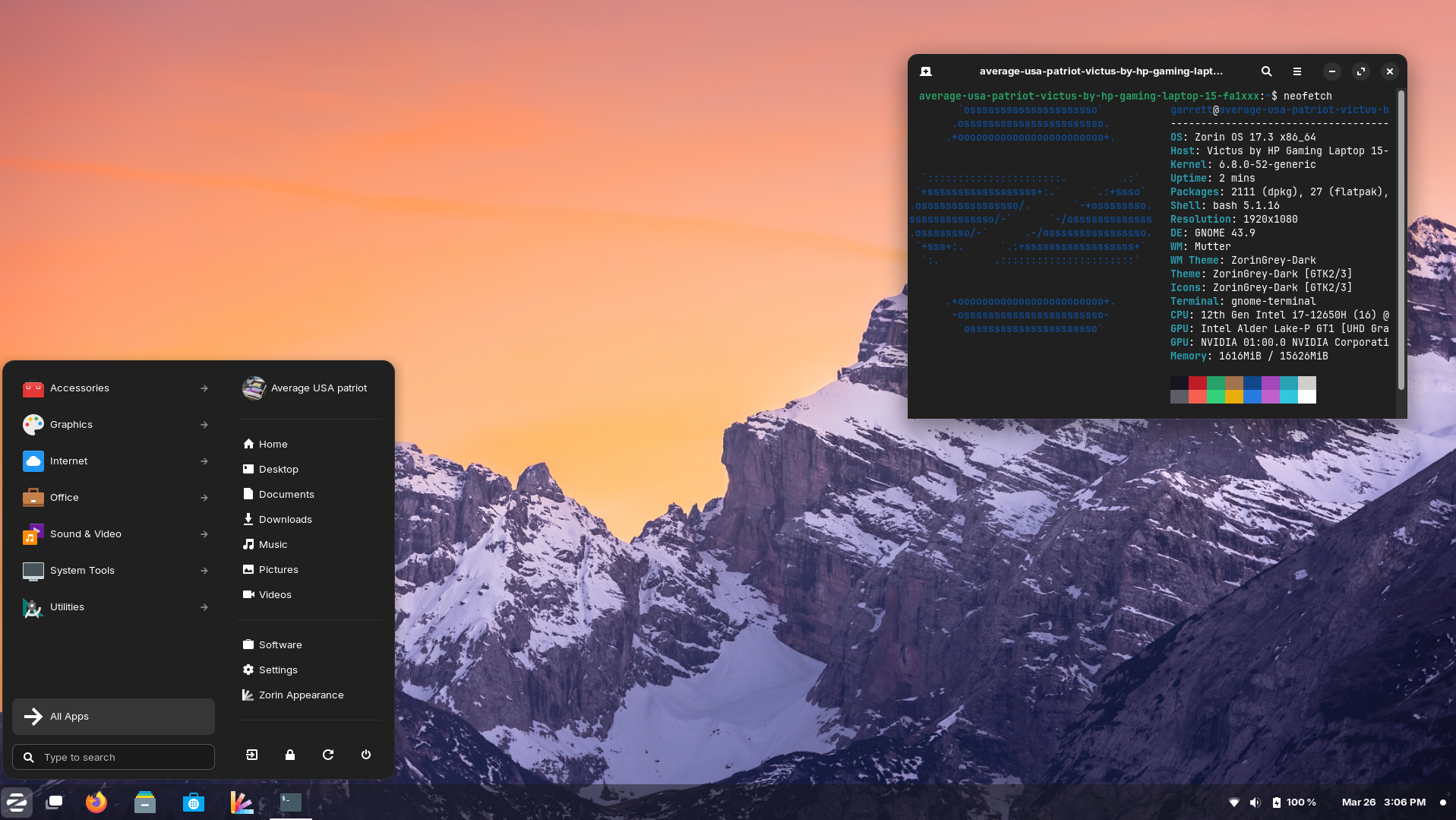
https://upload.wikimedia.org/wikipedia/commons/7/74/Zorin_OS_17.3_Desktop.png?utm_source=chatgpt.com
https://linuxmint-installation-guide.readthedocs.io/en/latest/_images/cinnamon.png?utm_source=chatgpt.com

With Windows 10 now officially unsupported, continuing to rely on it is no longer a neutral decision. It introduces growing security risks, compliance concerns, and operational friction.

Based on the work already completed, moving to Linux is not only viable, it is a measured, responsible, and future-proof decision.


1. Security Becomes a Business Risk, Not Just an IT Issue

Once Windows 10 stops receiving security updates, every unpatched vulnerability becomes permanent. Over time, that risk compounds.

Linux offers:

  • Continuous security updates
  • Strong permission separation by design
  • A significantly smaller malware attack surface
  • No dependency on third-party antivirus software

From a governance and risk perspective, running an unsupported operating system is increasingly difficult to justify. Linux restores a secure baseline.


2. No Forced Hardware Replacement

Modern Windows upgrades increasingly require:

  • TPM enforcement
  • Newer CPUs
  • Vendor-approved hardware

Linux runs efficiently on existing hardware, including systems Windows now considers obsolete. The work already done confirms that Wi-Fi, Bluetooth, graphics, and peripherals operate reliably without replacement.

The result:

  • Lower capital expenditure
  • Extended hardware lifespan
  • Reduced electronic waste

3. Predictability Instead of Forced Change

Windows updates frequently introduce:

  • Unrequested UI changes
  • Feature removals
  • Background services and advertising
  • Behaviour changes after updates

Linux updates are:

  • Transparent
  • Optional
  • Reversible
  • Administrator-controlled

Nothing installs unless it is explicitly approved. This removes a significant source of operational uncertainty.


4. A Familiar User Experience Without the Bloat

Modern Linux desktops provide:

  • A familiar Windows-like workflow
  • Fast and responsive performance
  • No ads, pop-ups, or telemetry

For users:

  • Browsers, email, Office-compatible tools, and PDF workflows work as expected
  • Bluetooth mice, keyboards, CAD devices, scanners, and printers function normally
  • No forced cloud accounts or subscription prompts

Training overhead is minimal, especially compared to adapting to newer Windows versions.


5. Licensing Costs Drop to Zero

Linux eliminates:

  • Operating system licensing fees
  • Subscription-based OS models
  • Artificial feature tiering

This is particularly valuable when:

  • Redeploying older machines
  • Building task-specific systems
  • Creating admin, kiosk, or utility workstations

The operating system becomes infrastructure, not a recurring cost.


6. Stability for Purpose-Built Workflows

Linux excels in clearly defined roles, including:

  • Administrative workstations
  • Production and CAD support systems
  • File management and automation
  • Remote access environments

Linux systems do not “drift” over time. A machine configured today will behave the same way months later, without surprise regressions.


7. A Strategic Reset, Not a Lateral Move

This is not about rejecting Windows. It is about acknowledging that:

  • Windows 10 is now a liability
  • Newer Windows versions impose constraints that do not align with operational needs
  • Linux provides control, longevity, and clarity

This represents a shift from a consumer-driven OS model to an engineered platform.


Bottom Line

Staying on Windows 10 is the risky option.

Moving to Linux is the controlled, secure, and forward-looking decision.

We retain our hardware, reduce costs, improve security, and regain control of our systems while delivering a stable and familiar experience for users.

Based on the work already completed, Linux is ready.

Why Linux Mint is Perfect for Vintage Machines

There’s a unique satisfaction in reviving older machines and making them useful again. Instead of sending them off to e-waste, I recently gave new life to two systems — an ASUS S550C and an older Mac Mini — using Linux Mint. Along the way, I also explored Wubuntu and set up a Parallels virtual machine on my M2 MacBook Air running macOS 26.

Why Linux Mint?

Linux Mint is a clean, efficient Linux distribution based on Ubuntu. It’s known for its ease of use, broad hardware compatibility, and stability. The Cinnamon desktop environment offers a traditional layout that’s intuitive for users coming from both Windows and macOS, without being resource-heavy.

For aging hardware or anyone looking for a friendly Linux experience, Mint hits the sweet spot.

The ASUS S550C Transformation

This laptop had been running a heavily tweaked build of Windows 11, bypassing hardware checks just to stay functional. It was sluggish and unreliable. I wiped the drive and installed Linux Mint Cinnamon, which immediately felt faster and more responsive.

I then:

  • Installed key apps: Chrome, 1Password, Master PDF Editor, eDEX-UI, and Ulauncher
  • Removed unneeded defaults like Firefox and Brave
  • Set up OneDrive CLI sync using a systemd service for background syncing
  • Installed Timeshift, a simple backup utility similar to Time Machine
  • Enabled Flatpak and Snap for broader software access

This machine, once a borderline write-off, is now perfectly usable again — and quite enjoyable to work on.

Cloning to the Mac Mini

After configuring the ASUS, I exported settings and installed software using Mint’s built-in Backup Tool, replicating the setup on an older Mac Mini, now named AirGap. This machine is now a fully isolated Linux box used for testing new tools, checking sync integrity, and simulating an offline environment.

The migration was seamless, and both machines now offer a consistent, fast Linux experience.

A Short Detour with Wubuntu

Before committing to Mint, I briefly tested Wubuntu — a Linux distro designed to mimic Windows 11, complete with a Start menu, taskbar, and UI that feels instantly familiar to Windows users.

Although visually polished, I had two key concerns:

  1. Wubuntu is not fully open source. Certain features and configuration tools are locked behind a paid Pro version.
  2. The Windows-like interface may raise copyright questions. Its visual similarity to Windows could create legal uncertainty around long-term use or distribution.

After an hour or two of testing, I removed Wubuntu. It didn’t offer anything I couldn’t achieve more cleanly with Linux Mint and some light theming.

Parallels VM on macOS 26

To round things out, I also set up Linux Mint Cinnamon as a virtual machine on my M2 MacBook Air, which is currently running macOS 26 Developer Beta 2.

Using Parallels Desktop, Mint installed quickly and runs beautifully. I use this VM for cross-platform testing, automation scripts, and exploring Linux tools in a controlled environment. Snapshots and seamless Mac integration make it a valuable part of my workflow.

What I Learned

  • Linux Mint performs well on both older hardware and modern virtual machines
  • Open source tools like Timeshift, Ulauncher, and the OneDrive CLI add real productivity
  • Linux Mint’s backup and migration tools are practical and effective
  • Wubuntu, while visually clever, does not align with open source values and comes with licensing questions
  • Parallels Desktop provides a robust environment for running Linux Mint inside macOS without dual-booting

Final Thoughts

Linux Mint has once again proven itself as a reliable, user-friendly Linux distribution. Whether used to breathe life into aging hardware or to run in a VM alongside macOS, it delivers a complete desktop experience with minimal setup.

In a world of constant upgrades and planned obsolescence, it’s refreshing to see a system that restores, reuses, and rewards. For anyone looking to explore Linux seriously or to make better use of an old laptop, Mint is a fantastic place to start.