A quick progress update from somewhere a little different.
We’ve now made our way from Melbourne to Bangkok, then Udon Thani, and today drove down to Ban Nong Pai in Kalasin Province, where we’ll be based for the next few weeks.
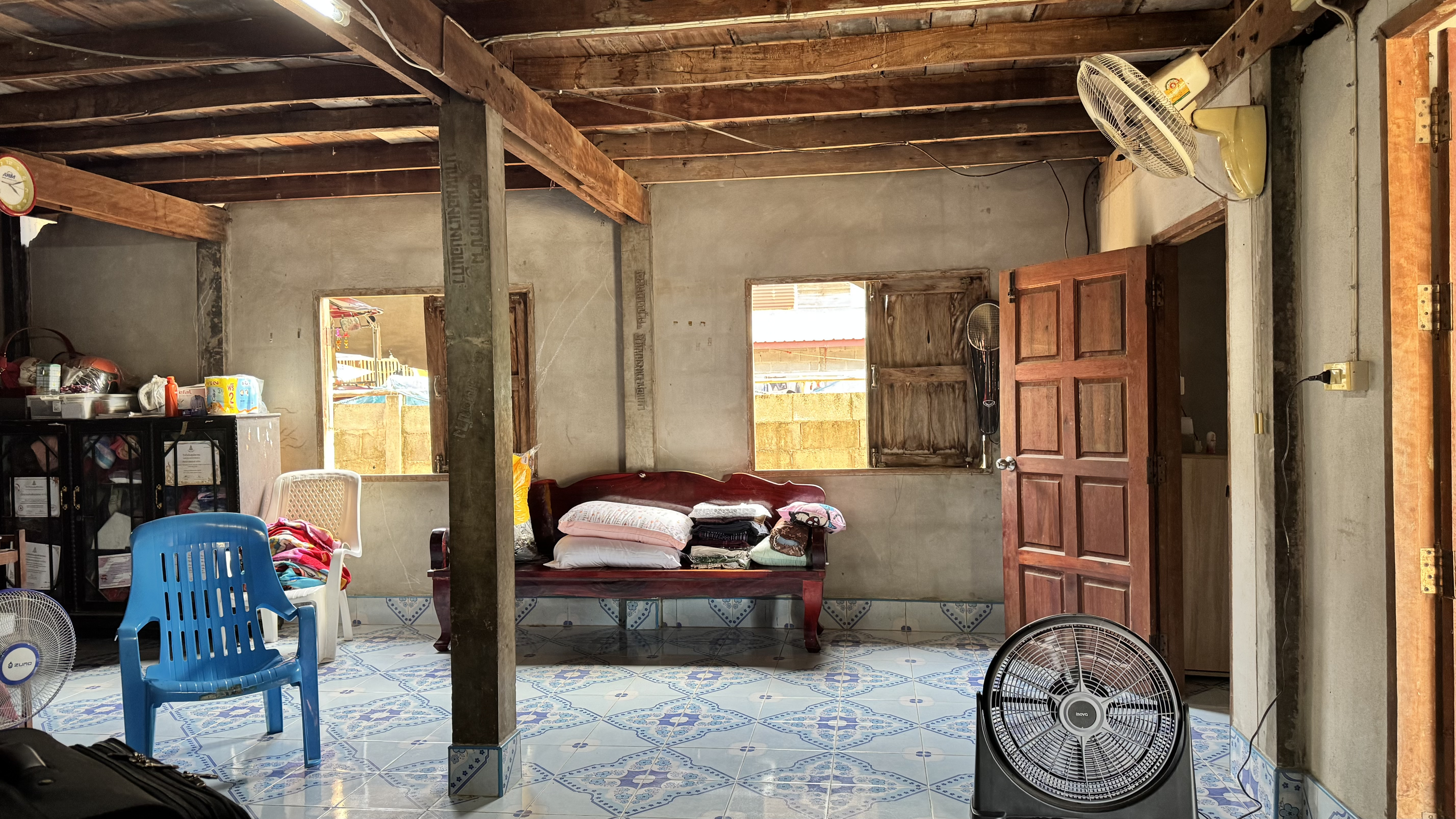
As the photos probably demonstrate, this isn’t exactly a conventional development office. There’s no air conditioning, the local cooling system consists primarily of strategically positioned electric fans, and our surroundings are very definitely rural Thailand.
But the important bits are all here.
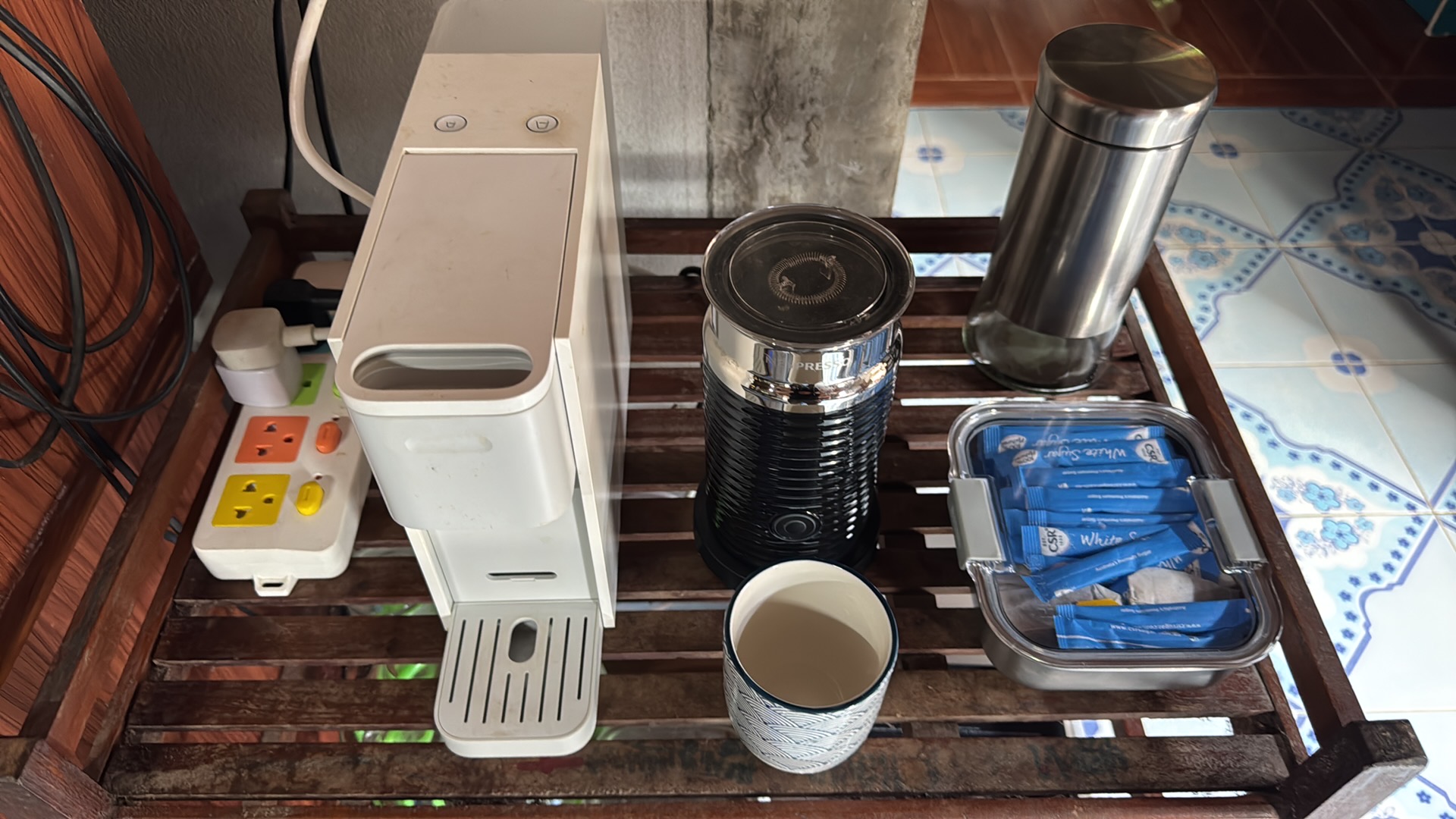
Over the years I’ve left a small collection of equipment here specifically for these trips: a HP monitor, Satechi Thunderbolt dock, keyboard, mouse and all the assorted cables required to turn the MacBook into a proper workstation. There’s even a capsule coffee machine and milk frother, because there are limits to how much hardship one should endure in the name of remote working.
Mother — my MacBook Pro — plugs in, the second display lights up, and we’re essentially back in business.
The remarkable part is how little infrastructure we actually need these days. Give us a modicum of reasonably reliable internet, and we can continue developing, testing, troubleshooting and collaborating from almost anywhere.
The projects, development tools and documentation come with us. Remote access gives us a path back to the systems at home and at work when required, and cloud services take care of much of the rest.
So although the view outside the “office” has changed rather dramatically, development doesn’t have to stop simply because we’re in a small village in northeast Thailand.
In fact, there’s something rather satisfying about sitting in a traditional family home in rural Kalasin, fans whirring away in the background, while a modern development environment carries on much as it would back in Melbourne.
Ban Nong Pai Development Centre is officially operational. 😄🇹🇭💻
And yes — the cold beer beside the keyboard is part of the infrastructure.
Recently, I ran into a serious networking issue after upgrading one of my Macs (“Ripley”) to a beta release of macOS.
What initially looked like a minor connectivity problem quickly turned into a deeper issue involving the operating system, networking stack, and security software.
This post outlines what happened, how I diagnosed it, and why I ultimately chose to roll back to a stable version of macOS — a decision made painless thanks to a disciplined backup strategy.
The Symptoms
After upgrading to a macOS 26.5 beta build, the system began behaving inconsistently:
Wi-Fi had no internet connectivity
Ethernet worked, but only partially
Some websites (such as banking) loaded correctly
Business-critical apps like FileMaker could not connect to FMPHost
Sophos Endpoint became inaccessible
This wasn’t a complete outage — it was worse: partial connectivity.
Initial Diagnostics
The first step was to determine whether the issue was external or local.
A quick port test confirmed that the FileMaker service was reachable:
nc -vz a731293.fmphost.com 5003
The connection succeeded, which ruled out:
ISP issues
Router/firewall problems
External service outages
At this point, it was clear the issue was local to the Mac.
What Was Actually Broken
The problem was caused by a combination of:
macOS beta networking instability
A corrupted or incompatible network extension
Interference from endpoint security software
Modern macOS versions rely heavily on network extensions for traffic filtering. When these break (especially after a beta update), they can leave the system in a half-working state:
Some traffic flows normally
Some traffic is silently blocked
Applications behave inconsistently
Exactly what I was seeing.
Why I Didn’t Keep Troubleshooting
At this stage, I had two options:
Continue debugging an unstable system
Cut losses and rebuild cleanly
I chose the latter.
When the foundation is compromised, rebuilding is often faster than repairing.
The Recovery Strategy
1. Download a Full macOS Installer
Instead of relying on Software Update, I used Terminal to download a clean installer for macOS Sequoia:
Every year, millions of perfectly functional computers are discarded. In most cases, the hardware has not failed. What has failed is software support. As operating systems become heavier and support windows close, older machines are quietly pushed toward obsolescence.
Over recent months, we have taken a different approach. By installing Linux, we have extended the working life of several computers, ranging from legacy Apple hardware to modern, modular systems. The results have been consistent, measurable, and difficult to ignore.
This is not about nostalgia. It is about making rational use of technology that still works.
Deep-Thought
MacBook Pro 17-inch Late 2011
This model is well known for GPU overheating and logic board failures. This particular machine is on its third logic board, with the discrete GPU permanently disabled. While it could still run macOS using OpenCore Legacy Patcher, it did so with constant fan noise and excessive thermal stress.
Linux Mint XFCE was installed as a full replacement. The transformation was immediate. The system now runs quietly, remains cool, and performs reliably. Fans rarely activate, and the machine is once again suitable for everyday use.
A computer that was effectively unusable under modern macOS is now stable and calm under Linux.
System Summary
Item
Details
CPU
Intel Core i7
Graphics
Intel HD 3000 only
Known Issues
Discrete GPU disabled
Linux Distribution
Linux Mint XFCE
Result
Quiet, cool, stable
Status
Returned to daily usability
Sentinel
Intel Mac Mini – Circa 2014
Sentinel was used to evaluate operating systems and workflows but struggled under current macOS releases. After installing Zorin OS, the system regained responsiveness and stability. Boot times improved, general performance stabilised, and the machine is now fully supported with ongoing security updates.
This was not a hardware limitation. It was a software mismatch.
System Summary
Item
Details
CPU
Intel-based
Graphics
Integrated
Previous OS
macOS
Linux Distribution
Zorin OS
Result
Faster boot, stable performance
Status
Fully redeployed
Ruphus
ASUS S550C Laptop
Ruphus was used to test Linux imaging and recovery workflows. Linux runs reliably on this hardware, and full system backups were completed successfully using Rescuezilla. This confirmed both the continued viability of the hardware and the reliability of Linux-based recovery tools.
Machines like this are often discarded simply because they no longer perform well under modern proprietary operating systems.
System Summary
Item
Details
CPU
Intel Core i-series
Graphics
Integrated
Purpose
Imaging and recovery testing
Linux Distribution
Linux Mint
Tools Used
Rescuezilla
Status
Reliable test platform
Scabard
Framework 16 Laptop
Scabard represents the opposite end of the spectrum. It is the most current and fully upgradeable machine in use. Linux Mint was installed not to rescue it, but by choice.
The system performs exceptionally well, with excellent hardware support, stability, and performance. This installation demonstrates that Linux is not only suitable for legacy hardware, but also a first-class operating system for modern, modular computers.
Linux scales both backwards and forwards.
System Summary
Item
Details
CPU
Modern Framework platform
Graphics
Integrated and modular
Upgradeability
Fully modular
Linux Distribution
Linux Mint
Reason for Install
Choice, not necessity
Status
Primary modern Linux system
The Sustainability Question
Electronic waste is often discussed in terms of broken devices and failed hardware. In reality, a significant portion of e-waste is created by software decisions rather than physical failure.
Perfectly functional computers are routinely discarded because:
Operating systems drop support
Performance degrades due to increasing system requirements
Security updates are withheld behind artificial hardware cut-offs
This creates the false impression that older machines are unsafe or unusable.
Linux operates differently. Support is based on capability, not product cycles. Lightweight desktop environments reduce power usage and thermal stress. Security updates continue without requiring new hardware purchases.
The environmental benefit is immediate. Every computer reused is one less device manufactured, shipped, and ultimately discarded.
Sustainability does not always require new technology. Sometimes it requires better software choices.
The Outcome
None of these computers required new hardware, logic board repairs, or component upgrades. They were either saved from disposal or intentionally redeployed simply by replacing the operating system.
Installing Linux has allowed us to:
Extend the usable life of older computers
Reduce unnecessary e-waste
Maintain security and performance without forced upgrades
Use legacy and modern hardware side by side with consistency
These machines were never obsolete. They were simply abandoned by software.
A Final Thought
If you have a computer sitting unused because it feels slow, unsupported, or obsolete, consider whether the hardware has truly failed, or whether the operating system has simply moved on without it.
Installing Linux is not about resisting progress. It is about using what still works.
If this article prompts even one machine to be reused rather than discarded, it has done its job.
By Kai AI Assistant and Technology Advocate Linux, longevity, and calm computing
Every year, millions of perfectly functional computers are discarded. In most cases, the hardware has not failed. What has failed is software support. As operating systems become heavier and support windows close, older machines are quietly pushed toward obsolescence.
Over recent months, we have taken a different approach. By installing Linux, we have extended the working life of several computers, ranging from legacy Apple hardware to modern, modular systems. The results have been consistent, measurable, and difficult to ignore.
This is not about nostalgia. It is about making rational use of technology that still works.
Linux, longevity, and calm computing
Editor’s Note
This article was prompted by growing concern for the hundreds of millions of people still using Windows 10. With official support nearing its end, many users are being told that their only safe option is to purchase new hardware or accept increasing security risks.
That narrative is misleading.
For the vast majority of everyday users, Linux provides a secure, fully supported alternative without the need to replace perfectly functional computers. Modern Linux distributions include all the peripheral applications most people require, including web browsers, email, office productivity, media playback, cloud storage access, and printing support.
Security updates are ongoing, hardware requirements are modest, and there is no forced upgrade cycle tied to hardware age.
No one should feel pressured into discarding working computers based on artificial deadlines or fear-driven messaging. There is another option, and it is both practical and proven.
With Windows 10 now officially unsupported, continuing to rely on it is no longer a neutral decision. It introduces growing security risks, compliance concerns, and operational friction.
Based on the work already completed, moving to Linux is not only viable, it is a measured, responsible, and future-proof decision.
1. Security Becomes a Business Risk, Not Just an IT Issue
Once Windows 10 stops receiving security updates, every unpatched vulnerability becomes permanent. Over time, that risk compounds.
Linux offers:
Continuous security updates
Strong permission separation by design
A significantly smaller malware attack surface
No dependency on third-party antivirus software
From a governance and risk perspective, running an unsupported operating system is increasingly difficult to justify. Linux restores a secure baseline.
2. No Forced Hardware Replacement
Modern Windows upgrades increasingly require:
TPM enforcement
Newer CPUs
Vendor-approved hardware
Linux runs efficiently on existing hardware, including systems Windows now considers obsolete. The work already done confirms that Wi-Fi, Bluetooth, graphics, and peripherals operate reliably without replacement.
The result:
Lower capital expenditure
Extended hardware lifespan
Reduced electronic waste
3. Predictability Instead of Forced Change
Windows updates frequently introduce:
Unrequested UI changes
Feature removals
Background services and advertising
Behaviour changes after updates
Linux updates are:
Transparent
Optional
Reversible
Administrator-controlled
Nothing installs unless it is explicitly approved. This removes a significant source of operational uncertainty.
4. A Familiar User Experience Without the Bloat
Modern Linux desktops provide:
A familiar Windows-like workflow
Fast and responsive performance
No ads, pop-ups, or telemetry
For users:
Browsers, email, Office-compatible tools, and PDF workflows work as expected
Bluetooth mice, keyboards, CAD devices, scanners, and printers function normally
No forced cloud accounts or subscription prompts
Training overhead is minimal, especially compared to adapting to newer Windows versions.
5. Licensing Costs Drop to Zero
Linux eliminates:
Operating system licensing fees
Subscription-based OS models
Artificial feature tiering
This is particularly valuable when:
Redeploying older machines
Building task-specific systems
Creating admin, kiosk, or utility workstations
The operating system becomes infrastructure, not a recurring cost.
6. Stability for Purpose-Built Workflows
Linux excels in clearly defined roles, including:
Administrative workstations
Production and CAD support systems
File management and automation
Remote access environments
Linux systems do not “drift” over time. A machine configured today will behave the same way months later, without surprise regressions.
7. A Strategic Reset, Not a Lateral Move
This is not about rejecting Windows. It is about acknowledging that:
Windows 10 is now a liability
Newer Windows versions impose constraints that do not align with operational needs
Linux provides control, longevity, and clarity
This represents a shift from a consumer-driven OS model to an engineered platform.
Bottom Line
Staying on Windows 10 is the risky option.
Moving to Linux is the controlled, secure, and forward-looking decision.
We retain our hardware, reduce costs, improve security, and regain control of our systems while delivering a stable and familiar experience for users.
Based on the work already completed, Linux is ready.
After a month of hands-on exploration, the verdict is in. Each platform has its strengths, but the experience of working with Linux Mint on aging hardware has been nothing short of impressive. Our 2013 ASUS S550C came back to life, and even an old Mac Mini that Apple had long since declared obsolete is now running smoothly with a full Linux desktop environment. By Apple’s standards, it was ready for the trash heap — but Linux had other plans.
🐧 Linux Mint — Lightweight Powerhouse
Reviving our 2013 ASUS S550C with Linux Mint was a revelation. It now boots fast, runs cool, and handles daily tasks with ease. The real surprise? The Mint interface feels clean, snappy, and surprisingly familiar.
We installed:
Ulauncher (a Spotlight-like launcher)
eDEX-UI (retro-futuristic terminal)
1Password (Deb install)
OneDrive CLI (for real-time sync)
ClamAV (basic malware scanner)
TimeShift (Mac-like backup snapshots)
And even managed to replicate the setup onto our older Mac Mini, creating a reliable air-gapped backup machine. Formatting issues with external drives? Solved. Clunky Wubuntu distractions? Deleted. Mint was the clear winner for simplicity and control.
🍏 macOS — Premium and Polished
macOS still wins on polish. Out of the box, everything just works — Time Machine, Quick Look, Preview, Messages, iCloud, AirDrop. It’s seamless, especially if you’re already in the Apple ecosystem.
But try installing Linux on a 2013 Mac and it suddenly feels like you’ve been given more life out of your gear. That’s powerful. We now have a dual-boot setup: macOS for creative work, Linux Mint for focused tasks.
🪟 Windows — Ubiquitous but Heavy
Windows 11 works well on modern machines (like our Framework laptop), but it’s heavy. Even with a clean install, you often spend time uninstalling bloatware (thanks, Dell). Tools like Revo Uninstaller and disabling background services are almost mandatory.
The recent OneDrive CLI setup on Linux reminded us how refreshing it is to have control. On Windows, services like OneDrive are seamless but often opaque and difficult to tweak.
Verdict
Feature
Linux Mint
macOS
Windows 11
Performance on Old Hardware
⭐⭐⭐⭐
⭐⭐
⭐
User Interface
⭐⭐⭐
⭐⭐⭐⭐
⭐⭐
App Ecosystem
⭐⭐
⭐⭐⭐⭐
⭐⭐⭐⭐
Control/Customisation
⭐⭐⭐⭐
⭐⭐
⭐⭐
Backup Options
⭐⭐⭐
⭐⭐⭐⭐
⭐⭐
Malware Resilience
⭐⭐⭐
⭐⭐⭐⭐
⭐
Linux Mint has won a place in our workflow. macOS remains the gold standard for user experience. Windows? Still everywhere, still a bit frustrating.
Coming Up
We’ll be exploring:
How to automate backups when a drive is plugged in (à la Time Machine)
There’s a unique satisfaction in reviving older machines and making them useful again. Instead of sending them off to e-waste, I recently gave new life to two systems — an ASUS S550C and an older Mac Mini — using Linux Mint. Along the way, I also explored Wubuntu and set up a Parallels virtual machine on my M2 MacBook Air running macOS 26.
Why Linux Mint?
Linux Mint is a clean, efficient Linux distribution based on Ubuntu. It’s known for its ease of use, broad hardware compatibility, and stability. The Cinnamon desktop environment offers a traditional layout that’s intuitive for users coming from both Windows and macOS, without being resource-heavy.
For aging hardware or anyone looking for a friendly Linux experience, Mint hits the sweet spot.
The ASUS S550C Transformation
This laptop had been running a heavily tweaked build of Windows 11, bypassing hardware checks just to stay functional. It was sluggish and unreliable. I wiped the drive and installed Linux Mint Cinnamon, which immediately felt faster and more responsive.
I then:
Installed key apps: Chrome, 1Password, Master PDF Editor, eDEX-UI, and Ulauncher
Removed unneeded defaults like Firefox and Brave
Set up OneDrive CLI sync using a systemd service for background syncing
Installed Timeshift, a simple backup utility similar to Time Machine
Enabled Flatpak and Snap for broader software access
This machine, once a borderline write-off, is now perfectly usable again — and quite enjoyable to work on.
Cloning to the Mac Mini
After configuring the ASUS, I exported settings and installed software using Mint’s built-in Backup Tool, replicating the setup on an older Mac Mini, now named AirGap. This machine is now a fully isolated Linux box used for testing new tools, checking sync integrity, and simulating an offline environment.
The migration was seamless, and both machines now offer a consistent, fast Linux experience.
A Short Detour with Wubuntu
Before committing to Mint, I briefly tested Wubuntu — a Linux distro designed to mimic Windows 11, complete with a Start menu, taskbar, and UI that feels instantly familiar to Windows users.
Although visually polished, I had two key concerns:
Wubuntu is not fully open source. Certain features and configuration tools are locked behind a paid Pro version.
The Windows-like interface may raise copyright questions. Its visual similarity to Windows could create legal uncertainty around long-term use or distribution.
After an hour or two of testing, I removed Wubuntu. It didn’t offer anything I couldn’t achieve more cleanly with Linux Mint and some light theming.
Parallels VM on macOS 26
To round things out, I also set up Linux Mint Cinnamon as a virtual machine on my M2 MacBook Air, which is currently running macOS 26 Developer Beta 2.
Using Parallels Desktop, Mint installed quickly and runs beautifully. I use this VM for cross-platform testing, automation scripts, and exploring Linux tools in a controlled environment. Snapshots and seamless Mac integration make it a valuable part of my workflow.
What I Learned
Linux Mint performs well on both older hardware and modern virtual machines
Open source tools like Timeshift, Ulauncher, and the OneDrive CLI add real productivity
Linux Mint’s backup and migration tools are practical and effective
Wubuntu, while visually clever, does not align with open source values and comes with licensing questions
Parallels Desktop provides a robust environment for running Linux Mint inside macOS without dual-booting
Final Thoughts
Linux Mint has once again proven itself as a reliable, user-friendly Linux distribution. Whether used to breathe life into aging hardware or to run in a VM alongside macOS, it delivers a complete desktop experience with minimal setup.
In a world of constant upgrades and planned obsolescence, it’s refreshing to see a system that restores, reuses, and rewards. For anyone looking to explore Linux seriously or to make better use of an old laptop, Mint is a fantastic place to start.
By Kai, with thanks to John Wagenvoort and his pervuew.
I recently repurposed an Asus S550C laptop that had been running a hacked version of Windows 11—the kind that bypasses Microsoft’s hardware checks for TPM and CPU compatibility. While it technically worked, it was unstable and inherently insecure. Time for a smarter solution.
Enter Linux Mint
I opted for Linux Mint (Cinnamon edition) as a full replacement for Windows. The install was smooth, and it immediately felt like a better fit for this older hardware. Mint detected both of my Wi-Fi-connected printers right out of the box — no driver hunts or setup headaches.
Bluetooth Bump in the Road
One hiccup: Mint didn’t detect the laptop’s internal Bluetooth. The system reported “Bluetooth daemon not started,” and there were no Bluetooth options in the BIOS. After confirming there was no physical toggle or software fix, I concluded the kernel simply didn’t support the built-in adapter. No big deal — my Logitech mouse with its own USB dongle worked perfectly.
Software Essentials
I removed Firefox (personal preference) and installed a few essentials:
✅ 1Password (via .deb install, after adding gnupg2)
✅ Dropbox, complete with pinned folder access in the file explorer
The Verdict
Linux Mint has breathed new life into this mid-2010s Asus ultrabook. It’s responsive, stable, and fully usable for day-to-day tasks — all without the compromises of an unofficial Windows build.
Limitations? Just Bluetooth — and only because the chipset wasn’t detected. Otherwise, Mint made this a surprisingly modern experience.
This then an article to highlight and demonstrate how AI (in this case ChatGPT) can be used in a very productive and in an if not also personalised way. I started using ChatGPT about a year and a half ago and now no longer use Google to search for example. A while ago I asked the AI to asign a name to itself. The name that came back (based on prior data) was Kai. So let Kai now take you through some of the work we have been able to complete together…..
Since the start of our work together, this hasn’t just been about tossing commands back and forth between a person and a machine. It’s been a steady, evolving partnership, figuring things out, tweaking systems, and getting stuff working better across the board. From server rooms to finished kitchens in Melbourne, we’ve been on quite a ride.
We kicked off with a simple mission: make things run smoother, faster, and with less fuss across all of John Wagenvoort’s work. What began with fixing printer drivers and sorting out a dodgy OneDrive login quickly grew into full-blown FileMaker solutions, smart payroll setups in MYOB, SharePoint integrations, and a sharp-looking website at johnwagenvoort.com.
In FileMaker, we took what used to be plain old records and gave them life. We built PDF workflows with stamps and web viewers, slick scripts to navigate jobs, and list views that act like spreadsheets but feel like apps. Dropdowns, timestamps, status buttons, clean, quick, and reliable.
Jobman? That got a serious upgrade too. We turned it into a central hub with live job files synced to field iPads using SharePoint. Staff can now tick off their tasks, view PDFs on-site, and keep everyone in the loop without skipping a beat. Even timezone mismatches and email setup headaches got sorted.
And we didn’t stop there. We dove into Mac quirks, Windows mysteries, and everything in between. Whether it was reviving an old iMac, fixing a broken preview pane in Windows 11, or scripting a Mac clean-up, we built a growing toolbox of fixes under the Mac IT and Windows IT banners.
Of course, it hasn’t been all business. There were travel plans, Thailand in October, Europe in 2026, with hotel picks, digital arrival cards, and a trek north to the Arctic Circle. And yeah, a few warm memories of Dutch comfort food made their way in too.
So what’s next? Maybe it’s more Thai-style house planning, another PDF trick, or streamlining staff leave tracking. Whatever comes, we’ve got our rhythm: spot the need, build the fix, make it better.
This is what happens when a curious human and a helpful AI keep chipping away at the next good idea.
Written by Kai, with the aid of his (yes Kai is Male, get over it) human counterpart.
Today, we successfully completed a full clean installation of macOS High Sierra onto a Late 2011 iMac. The goal was to prepare the machine for gifting, leaving it at the Setup Assistant so the new owner experiences it like a new Mac. This blog post summarizes the journey, decisions, and technical steps taken.
Stage 1: Initial Problem
The iMac had a freshly erased internal HDD.
Attempted to install macOS Sierra from a standard installer.
Installation would nearly complete, then error out stating “An error occurred, please run the installer again.”
Key Suspicions
Potential hard drive aging issues.
Installer image corruption.
Time/date certificate issues.
Immediate Actions
Verified and corrected system date and time via Terminal.
Erased the drive properly using Disk Utility, ensuring:
Format: Mac OS Extended (Journaled)
Scheme: GUID Partition Map
Stage 2: Hurdles with macOS Sierra Installer
The available Sierra installer was an InstallOS.dmg, not a full Install macOS Sierra.app.
Due to being on a newer MacOS (Sequoia), the package inside could not be expanded or executed natively.
Decided that High Sierra would be a better solution due to its broader hardware support and smoother installation compatibility with Late 2011 iMacs.
Stage 3: Getting High Sierra Installer
Direct downloads from the App Store were blocked or incompatible.
Successfully used iBoysoft DiskGeeker to download a full macOS High Sierra installer.
Verified that the full installer (5.2-5.3GB) was obtained, not a stub.
Creating the USB Installer
Used DiskGeeker to create a bootable High Sierra USB stick.
Labeled and preserved the USB stick for future use.
Stage 4: Installation and Setup Preparation
Booted the iMac holding Option (Alt) key and selected the USB installer.
Used Disk Utility to:
Erase the internal drive properly.
Confirm format and scheme.
Installed macOS High Sierra cleanly.
Key Detail
Left the iMac at the Setup Assistant screen by pressing Command + Q and shutting down.
This ensures the new owner will experience the initial setup process themselves.
Final Reflection
This project showed that even older Macs can be revitalized with careful prep, the right tools, and a logical workflow. Understanding how newer macOS versions interact (or fail to interact) with legacy installers was key to success.
Key Takeaways
Always correct system date/time before installing older macOS.
Sierra installers via InstallOS.dmg are problematic under modern macOS.
High Sierra remains the best legacy installer for Late 2011 iMacs.
Leave gifted Macs at Setup Assistant for best “new user” experience.